What is UI Design? A Complete Guide for Developers & Designers
UI design (User Interface design) is one of the most critical skills in software development. Whether you're a developer building a SaaS product or a designer crafting mobile apps, understanding UI design is essential to creating products people actually want to use.
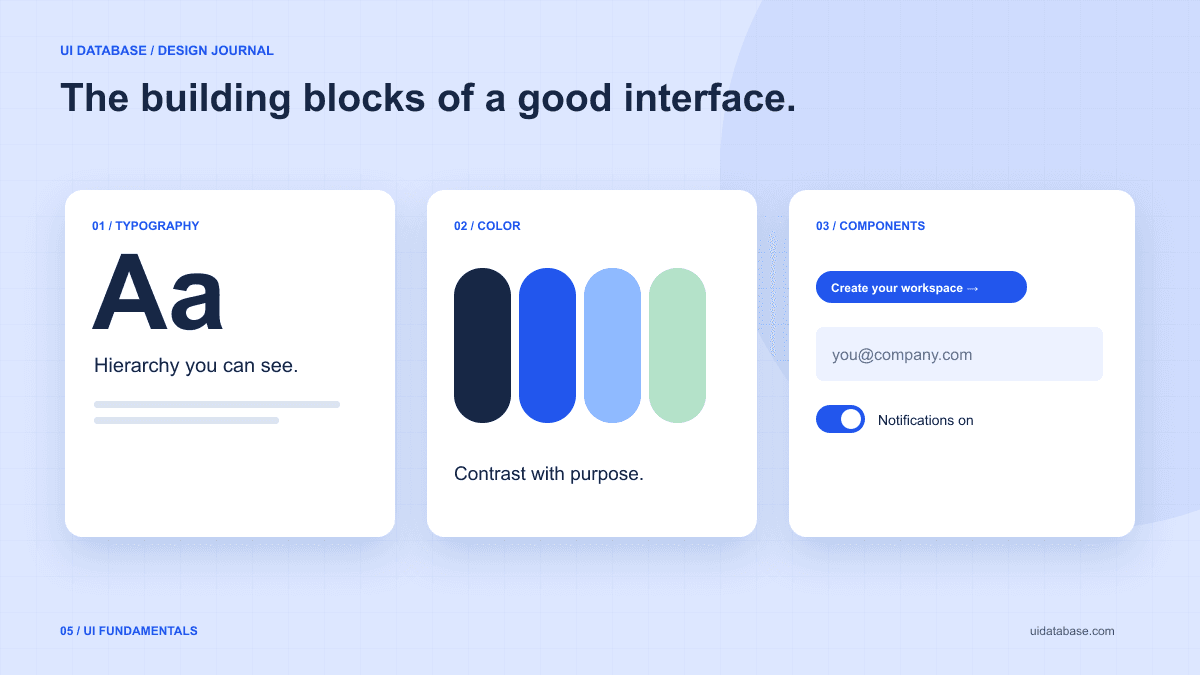
1. What is UI Design?
UI design (User Interface design) is the practice of designing the visual and interactive elements that users interact with in a digital product. This includes everything from buttons, icons, and typography to layout, color schemes, and responsive behavior.
Think of UI design as the “look and feel” layer of an application. It's what makes a product visually appealing, intuitive, and enjoyable to use. Good UI design doesn't just look pretty — it guides users toward their goals with minimal friction.
In simple terms: UI design is about making software look good and feel intuitive. It's the bridge between raw functionality and a delightful user experience.
2. UI Design vs UX Design — What's the Difference?
These two terms are often used interchangeably, but they are fundamentally different disciplines:
| Aspect | UI Design | UX Design |
|---|---|---|
| Focus | Visual appearance & interaction | Overall user journey & satisfaction |
| Deals with | Colors, typography, buttons, layouts | User flows, research, wireframes |
| Question it answers | “Does this look and feel right?” | “Is this easy and enjoyable to use?” |
| Output | High-fidelity mockups, design systems | User personas, journey maps, prototypes |
The best digital products combine both excellent UI and UX design. A beautiful interface (UI) that's confusing to navigate has bad UX. A well-organized app (UX) that looks outdated has bad UI. You need both.
3. Core Principles of Great UI Design
Every high-quality UI follows these foundational principles:
Clarity
Users should instantly understand what every element does. Labels should be descriptive, icons recognizable, and navigation predictable.
Consistency
Use the same colors, typography, spacing, and interaction patterns throughout. This builds trust and reduces cognitive load.
Visual Hierarchy
Guide the user's eye with size, color, contrast, and spacing. The most important elements should be the most visually prominent.
Feedback
Every user action should produce a visible response — hover states, loading indicators, success messages, error alerts.
Simplicity
Remove anything that doesn't serve the user's goal. Great UI design is about subtraction, not addition.
Accessibility
Design for all users, including those with visual impairments, motor disabilities, or cognitive differences. Use sufficient contrast, keyboard navigation, and ARIA labels.
4. Key Elements of UI Design
UI design is made up of several core elements that work together to create a cohesive interface:
Typography
Font families, sizes, weights, and line heights that establish readability and brand tone.
Color System
Primary, secondary, and accent colors plus semantic colors for success, warning, error states.
Spacing & Layout
Consistent padding, margins, and grid systems that create visual rhythm and alignment.
Components
Buttons, inputs, cards, modals, dropdowns — the reusable building blocks of your interface.
Iconography
Meaningful icons that reinforce labels, guide actions, and reduce text density.
Motion & Animation
Transitions, micro-interactions, and loading animations that make interfaces feel responsive.
5. The UI Design Process
Whether you're a solo developer or part of a design team, a structured process ensures better outcomes:
Research & Requirements
Understand the product goals, target users, and competitive landscape. What are users trying to accomplish?
Wireframing
Create low-fidelity layouts focusing on content structure and user flows — no colors or fancy styling yet.
Visual Design
Apply your design system — colors, typography, components. This is where UI design inspiration becomes invaluable.
Prototyping
Build interactive prototypes to test flows and gather feedback before committing to code.
Implementation
Translate designs into production code. UI libraries and AI prompts can dramatically speed up this step.
Testing & Iteration
Test with real users, measure usability metrics, and iterate based on data.
6. UI Design Tools & Resources
Here are the top tools used by UI designers and developers in 2026:
Design Tools
- Figma — The industry standard for collaborative UI design and prototyping
- Sketch — Popular for macOS-based design teams
- Adobe XD — Part of the Adobe ecosystem with deep integration
AI-Powered Tools
- v0 by Vercel — Generates React components from text descriptions
- Cursor — AI code editor that can build UI from prompts
- ChatGPT — Great for generating UI code when paired with the right prompts
UI Design Inspiration Sites
- UIDatabase — The largest UI library with production-ready AI prompts and curated UI patterns
- Dribbble — Visual-focused design portfolio showcase
- Behance — Full-project case studies and design work
7. How a UI Library Accelerates Your Workflow
A UI library is a curated collection of pre-built components, design patterns, and templates. Instead of designing every button, modal, and dashboard from scratch, you start with proven patterns and customize them for your product.
Traditional UI libraries (like Material UI or Shadcn) provide code components. But a new category of UI libraries — including UIDatabase — goes further by providing:
- Visual design inspiration alongside every pattern
- Copy-paste AI prompts to recreate any design instantly
- Categorized UI patterns for dashboards, landing pages, auth flows, and more
- UX behavior specifications like error states, loading states, and edge cases
💡 Why this matters for developers:
Instead of spending 5+ hours tweaking a SaaS dashboard layout, browse a UI library like UIDatabase, find a proven pattern, copy the AI prompt, and generate production-ready code in minutes.
8. UI Design Examples by Category
Here are the most common categories of UI design, each with distinct patterns and best practices:
SaaS Dashboards
Data-rich interfaces with charts, KPIs, navigation sidebars, and activity feeds. Key patterns: card-based metrics, tabular data with filters, date range pickers.
Landing Pages
Conversion-focused pages with hero sections, social proof, feature grids, pricing tables, and strong CTAs. Website design inspiration is critical here.
Authentication Flows
Login, signup, forgot password, and 2FA screens. Best UI patterns include social login options, progressive disclosure, and inline validation.
Mobile App UI
Touch-optimized interfaces with bottom navigation, swipe gestures, pull-to-refresh, and adaptive layouts for different screen sizes.
E-commerce
Product cards, filters, cart summaries, checkout flows, and order tracking. UI patterns focus on reducing friction and increasing trust.
Settings & Admin Panels
Form-heavy interfaces with toggles, tabs, breadcrumbs, and role-based access controls. Clarity and organization are paramount.
9. Getting Started with UI Design
Ready to start designing better interfaces? Here's a practical roadmap:
- Study existing designs — Browse UI design inspiration sites like UIDatabase to see what works in production
- Learn the fundamentals — Typography, color theory, spacing, and visual hierarchy
- Pick a design tool — Start with Figma (free) for designing, or go code-first with AI tools
- Use a UI library — Don't reinvent the wheel. Start with proven UI patterns and customize from there
- Build and ship — Practice by building real projects, not just following tutorials
- Get feedback — Share your work, run usability tests, and iterate
Start Browsing UI Design Inspiration
UIDatabase has hundreds of curated UI patterns with production-ready AI prompts. Find the perfect design, copy the prompt, and ship faster.
Browse the UI Library